A Practical Guide on How to Use Sora 2 for AI Video Creation
Discover how to use Sora 2 with this practical guide. Learn to craft expert prompts, build storyboards, and create stunning AI videos for TikTok and ecommerce.
Getting the hang of a tool like Sora 2 AI video generation is one thing—you type what you want, and it makes a video. Easy enough. But the real magic, the skill that separates a quick clip from a professional-looking video, is in the details. It's all about how you write your Sora 2 prompts and string together multiple scenes to tell a compelling story, especially for platforms like TikTok and Shopify.
A Whole New Way to Create Video
The days of needing complex editing software and expensive gear just to get an idea out of your head and onto a screen are fading. Now, creating a video starts with a few well-chosen words. This shift has opened up high-quality video production to pretty much everyone, and this guide is here to show you exactly how to make the most of it with the Sora 2 video generator.
The Sora 2 text-to-video model is a major step forward. While earlier AI gave us a glimpse of understanding object permanence, Sora 2 takes realism and user control to a completely new level. We're talking about the ability to generate 5-second clips in crisp 4K resolution, complete with complex cinematic styles and synchronized sound effects. You can learn more about Sora 2's impressive features and see what all the excitement is about.
To give you a quick snapshot, here’s a look at the key features we’ll be diving into.
Sora 2 Core Capabilities at a Glance
| Feature | Description | Best For |
|---|---|---|
| Sora 2 Text-to-Video | Generates video clips directly from a detailed text description. | Quickly visualizing concepts, creating B-roll, or single-scene social posts. |
| Image-to-Video | Animates a static image, bringing it to life with motion. | Product mockups, animating artwork, or adding subtle motion to photos. |
| Sora 2 Storyboard Generator | Creates a sequence of connected clips with consistent characters and style. | Telling a short story, building product ads for ecommerce, or creating tutorials. |
| 4K Resolution | Exports videos in ultra-high-definition for a professional finish. | High-impact marketing campaigns, website banners, and digital signage. |
| Platform Optimization | Includes presets for popular aspect ratios and formats. | Exporting content perfectly sized for TikTok ads, Shopify product videos, and Instagram. |
This table is just the starting point. We're going to get hands-on with each of these features.
What You Will Learn in This Guide
This tutorial is built for creators, marketers, and e-commerce sellers who need to produce great-looking AI-generated videos without the traditional hassle. We’ll skip the fluff and get right into the practical steps.
Here’s what we’ll cover:
- Getting Started Right: We'll walk through setting up your account and getting comfortable with the Saro2.ai dashboard so you can hit the ground running.
- The Art of the Sora 2 Prompt: Learn how to write effective text-to-video prompts that translate your creative vision into reality with surprising accuracy.
- Building a Real Story: I'll show you how to use the storyboard generator to link scenes together, maintaining character and style consistency for a cohesive narrative.
- Exporting for Success: Get my personal tips for exporting videos formatted perfectly for platforms like TikTok and Shopify to maximize your engagement and sales.
By the time you're done with this guide, you won't just know what the buttons do. You'll understand how to use this tool strategically to create content that actually gets results—whether that’s growing a brand or creating product videos. Let's turn your ideas into videos that work.
Getting Started with the Sora 2 Interface
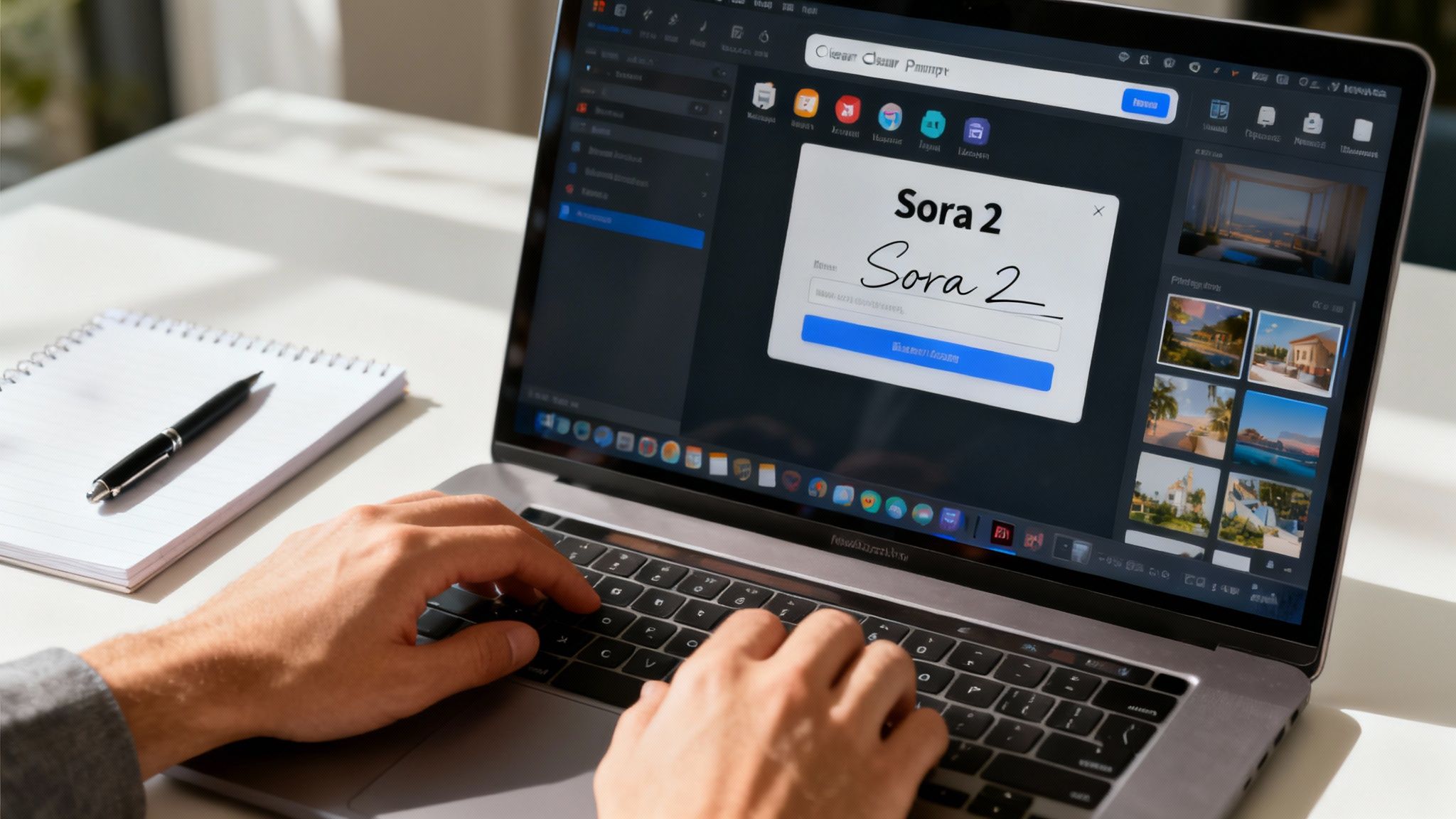
Jumping into a new creative tool can feel a little intimidating, but I've found the Sora 2 interface is built for getting things done quickly. The first thing you need to do is get your account set up, which is painless. Just head over to the Saro2.ai homepage and run through the sign-up. It only takes a minute, and you can dive right in—no waitlists or special codes needed.
Once you’re in, you’ll land on the main dashboard. This is your mission control for creating videos. Instead of a confusing array of buttons and menus, the layout is clean and centers on one thing: turning your ideas into video. Your eye will immediately be drawn to the prompt bar, which is where all the action starts.
Off to the side, you’ll find the style library. This is a brilliant shortcut. It's a collection of pre-set visual aesthetics you can apply to your videos. Think of it as a one-click way to get a specific look—cinematic, anime, vintage—without having to spell out every single detail in your prompt. We'll get more into how to use Sora 2 style models later, but it’s fantastic for keeping your brand visuals consistent.
Navigating Your Creative Workspace
Look below the main prompt area, and you'll see your project gallery. Every video you create is automatically saved here. This is incredibly useful because it lets you easily look back, download, or even build on earlier ideas. Having a running history of your work is a lifesaver for refining Sora 2 prompts and seeing how your concepts evolve.
Let's ground this in a real-world example. Say you run a Shopify store and want to create a quick, slick promo for a new handcrafted leather wallet. This is the perfect kind of ecommerce product video to get your feet wet with Sora 2.
Your First Generation: Text-to-Video
We'll start with the main event: the Sora 2 text-to-video feature. This is the heart of what makes the platform so powerful. You simply describe what you want to see, and the AI brings it to life.
For our leather wallet, we can't just type "leather wallet" and expect magic. The better your description, the better the result. We need to feed the AI more detail.
Let’s type a descriptive prompt into that main bar. Something like this:
"A slow-motion, close-up shot of a dark brown leather wallet sitting on a rustic wooden table. Soft, warm light from a nearby window highlights the fine stitching and texture of the leather. The background is slightly blurred."
This prompt gives the AI specific instructions on several key elements:
- Subject: A dark brown leather wallet.
- Action: A slow-motion, close-up shot.
- Setting: A rustic wooden table.
- Lighting: Soft, warm window light.
- Camera Detail: Blurred background (this effect is often called bokeh).
Once you've entered your prompt, hit the generate button. In just a moment, Sora 2 will create a video clip based on your text. This first output is your starting point. From here, you can start tweaking. Maybe change the lighting to "dramatic side lighting" or add "a hand gently touches the wallet" for a human touch.
This back-and-forth process is how you get really good at prompt-based video creation. Your project gallery keeps each version, so you can easily compare them and pick the winner. Just like that, you've already walked through the fundamental workflow of Sora 2.
Crafting Prompts That Generate Stunning Videos
The real magic behind any of these new AI video tools isn't in the software itself—it's in learning how to talk to it. Think of yourself as a film director and the AI as your incredibly talented, but very literal, production crew. The quality of your final video is a direct reflection of the quality of your Sora 2 prompts.
A simple command like "a dog running" gets you a simple, often forgettable, result. But a detailed script? That's how you get a cinematic scene.
To really get the hang of a Sora 2 style model, you have to move beyond those basic ideas. The key is to break down your vision into its core components and feed them to the AI in a language it understands. Every great prompt is built on a foundation of clear, descriptive language that covers the who, what, and where of your scene.
The most effective prompts combine several key ingredients to paint a complete picture for the AI. This structured approach gives you predictable control over the final video, which is absolutely essential when you're creating something for a specific purpose, like a TikTok ad or a product video for your Shopify store.
The Anatomy of an Effective Prompt
At its heart, a powerful prompt tells a story, even if it's just a five-second clip. It needs a subject, an action, and a setting. But to really make it pop, you have to start layering in details about the mood, style, and camera work.
Let’s break down the essential building blocks you should always think about:
- The Subject: Who or what is the star of your video? Get specific. Don't just say "a car"—try "a vintage red convertible sports car." The more detail you give the AI, the closer it will get to what's in your head.
- The Action: What is your subject doing? Again, details are your best friend. "Driving" is fine, but "cruising along a winding coastal highway at sunset" is so much more evocative. It gives the AI a whole scene to work with.
- The Setting: Where is all this happening? Describe the environment. Is it a "futuristic cityscape with neon signs" or a "serene, misty forest at dawn"? The setting instantly establishes the mood.
These three elements are the backbone of any good prompt. But if you really want to unlock what these tools can do, you need to start thinking like a cinematographer.
I’ve found that the biggest leap in quality comes when you stop just describing what’s in the scene and start directing how the scene is filmed. This is where you add the artistic layer that makes your videos stand out.
Directing the Camera and Setting the Mood
Controlling the virtual camera is one of the most powerful techniques you can master. When you start including cinematic terms in your prompt, you're guiding the AI to create dynamic, professional-looking shots. This is a complete game-changer for creating content for platforms like TikTok, where that initial visual hook is everything.
Here are some camera and lighting cues to play around with:
- Camera Movement: Add motion with terms like "dolly shot" (moving forward or back), "panning shot" (sweeping side to side), or "crane shot" (moving up or down).
- Shot Type: Tell the AI how to frame the shot. Do you want a "wide shot" to show the whole scene, a "medium shot" for interactions, or a "cinematic close-up" to focus on a single, important detail?
- Lighting: Lighting dictates the entire mood. Using phrases like "golden hour," "dramatic backlighting," "neon glow," or "soft, ambient light" can completely transform the feel of your video.
Combining all these elements is where things get really exciting. Let’s look at a quick before-and-after for an e-commerce brand selling artisanal coffee.
Before (Basic Prompt): "A cup of coffee on a table."
This is way too simple. The AI will likely spit out a generic, boring clip that won’t catch anyone's eye.
After (Detailed Prompt): "Cinematic close-up of steam rising from a black ceramic mug filled with dark coffee. The mug sits on a reclaimed wood table next to a small pile of coffee beans. Filmed with a shallow depth of field, the background is softly blurred. The scene is illuminated by warm, 'golden hour' morning light streaming through a window."
See the difference? This detailed prompt gives the AI a rich set of instructions. The result is a video that feels warm, premium, and inviting—exactly the vibe a high-end coffee brand wants.
Adopting a Specific Artistic Style
Consistency is crucial, especially for branding. If you're creating a series of videos for a campaign, you need them to feel like they belong together. Prompts make this easy by letting you call out specific artistic styles.
It’s as simple as adding a stylistic tag to your prompt. You can reference art movements, film genres, or popular aesthetics.
Examples of Style Modifiers:
| Style Modifier | Description | Best For |
|---|---|---|
| Anime aesthetic | Creates vibrant, stylized visuals with distinct character designs and dynamic action, much like Japanese animation. | Eye-catching TikTok ads, brand storytelling, and animated explainers. |
| Cinematic film grain | Adds a subtle texture, giving your video a classic, film-like quality instead of a sharp, digital look. | Creating a nostalgic or high-end feel for product videos or brand stories. |
| Vaporwave style | Brings in a retro-futuristic look with neon colors, glitch effects, and 80s/90s pop culture vibes. | Unique and edgy marketing content, especially for fashion or music brands. |
| Photorealistic | Aims for maximum realism, trying to mimic a high-resolution camera shot with natural lighting and lifelike textures. | Ecommerce product videos, real estate videos, and any content that needs to look as real as possible. |
By working these style keywords into your prompts, you’re not just telling the AI what to create; you’re telling it how to create it. This level of control is what turns a simple text-to-video tool into a true creative partner. The more you practice this detailed approach, the faster you'll be able to turn any idea into a high-quality video that gets results.
Building Narratives with the Storyboard Generator
Single, eye-catching clips are great, but the real magic of a tool like the Sora 2 video generator is its ability to tell a complete story. This is where you graduate from making moments to building actual narratives—a critical skill for crafting TikTok ads that convert or product videos that actually sell. The key to all this is the Sora 2 storyboard generator.
Instead of generating a bunch of one-off clips and hoping you can stitch them together later, the storyboard feature lets you map out your entire video from the get-go. This is huge for maintaining a consistent look and feel, which is non-negotiable for good brand storytelling. Think of it as your director's chair, giving you total control over the flow, from the opening hook to the final shot.
Let's walk through a real-world example: building a short brand story for a fictional sustainable sneaker brand. The goal is a video that can grab attention on TikTok in under 30 seconds. This will show you exactly how to use the storyboard to keep everything cohesive and build a story that resonates.
Outlining Your Multi-Scene Narrative
Before you write a single prompt, you need a plan. A storyboard is just that—a sequence of shots that tells your story. For something like a TikTok ad, you have to be quick and impactful. I’ve found a simple three-scene structure usually works best: the hook, the demonstration, and the payoff.
Here’s how we'll map out our sneaker ad:
- Scene 1 (The Hook): An intriguing, fast-paced shot. Someone is lacing up unique-looking sneakers in a cool urban setting. The only job of this scene is to make people stop scrolling.
- Scene 2 (The Demonstration): Now we see the character confidently walking through a bustling city street. This is where we show the product in action, making sure it’s the same character and style.
- Scene 3 (The Payoff): A final, satisfying shot. The character looks down at their shoes with a smile, maybe followed by a simple text overlay with the brand name.
With this simple structure in place, we can now translate each scene into a specific prompt inside the storyboard generator. It’s this kind of clear, sequential thinking that separates decent AI video from great AI video.
This diagram shows the basic formula I use for building a strong visual prompt, which is the foundation of every scene in your storyboard.
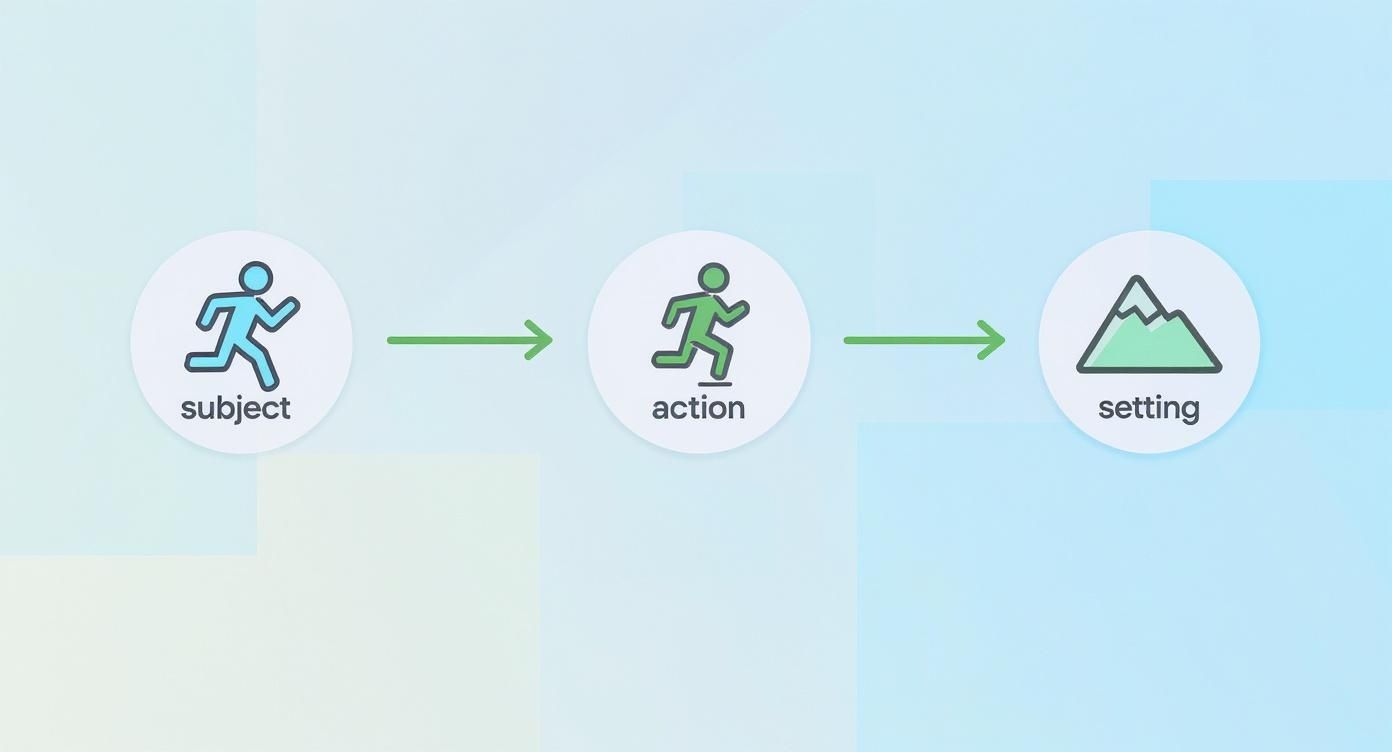
Breaking it down like this—subject, action, setting—forces you to be specific, which is exactly what the AI needs to create a cohesive narrative.
Writing Prompts for Each Scene
Inside the Sora 2 storyboard generator, you'll see separate input fields for each scene you've planned. The secret sauce here is maintaining consistency. One of the most powerful tricks is referencing characters and styles from previous scenes. You can often assign a "character ID" or just be very descriptive and consistent.
Here are the exact prompts I’d use for our sneaker ad:
- Scene 1 Prompt: "Dynamic close-up shot of a young woman with curly brown hair (Character A) lacing up stylish, eco-friendly sneakers made from recycled materials. The setting is a gritty, graffiti-covered alleyway at sunrise. Cinematic, fast-paced editing."
- Scene 2 Prompt: "Medium shot following Character A from behind as she walks confidently down a bustling city sidewalk. The same eco-friendly sneakers are visible with each step. The video has a clean, modern aesthetic with a slightly desaturated color palette."
- Scene 3 Prompt: "A final, slow-motion close-up of Character A's sneakers as she comes to a stop. She looks down, a slight smile on her face. The brand name 'EvoKicks' appears in clean, white text. Soft morning light."
See how "Character A" is mentioned in each prompt? That's the signal to the AI to keep the same person across all three shots, which solves one of the biggest headaches in AI video creation.
Insider Tip: Pacing is everything on platforms like TikTok. Don't be afraid to use descriptive words like "dynamic," "fast-paced," and "slow-motion" directly in your prompts. This gives you direct control over the rhythm of each scene without ever having to open an external editor.
Creating Smooth Transitions and Flow
The storyboard generator isn't just for linking clips; it’s about making them flow together seamlessly. Once you’ve generated your scenes, Sora 2 gives you simple transition options. You can pick a clean "cut" for a modern, punchy feel or a "dissolve" for something a bit softer.
For our fast-paced TikTok ad, a simple cut between scenes 1 and 2, followed by a slight fade into that final payoff shot, will work perfectly.
This entire process, from outlining the story to generating the final multi-scene video, all happens in one place. By really learning how to use Sora 2's storyboard feature, you can crank out compelling, structured video ads that used to require serious time and editing skills. It's an absolute must-use tool for any creator or marketer looking to produce quality narrative content without the fuss.
Optimizing and Exporting Videos That Convert
So you've generated an amazing video with our AI. That’s the fun part. But if nobody sees it, or if it looks terrible on the platform you post it to, all that creative work is for nothing. This is where we get practical and turn those AI creations into assets that actually get results.
The journey from a cool concept to a high-performing video starts with the export settings. Sure, there are presets, but really getting a feel for why you choose certain settings is what separates the pros from the amateurs. It’s not just about file formats; it’s about making sure your video is sharp, fits the screen perfectly, and looks professional whether it’s on a TikTok feed or a Shopify product page.
For instance, a video for a TikTok ad absolutely has to be in a 9:16 aspect ratio. Anything else gets awkwardly cropped and just screams "I don't know what I'm doing." Meanwhile, a standard Instagram feed post does best at 1:1 (square) or 4:5. Nailing these simple details is your first step to stopping the scroll.
Mastering Platform-Specific Export Settings
Every platform is its own little world with its own rules. A one-size-fits-all approach to exporting is a recipe for blurry, badly-framed videos that tank your engagement. Before you even think about hitting that final render button, you need a clear plan for where your video will live.
Export Settings for Popular Platforms
Here’s a quick reference guide to help you choose the correct export settings, ensuring your videos look their best and drive engagement.
| Platform | Recommended Aspect Ratio | Recommended Resolution | Pro Tip |
|---|---|---|---|
| Sora 2 for TikTok ads | 9:16 (Vertical) | 1080x1920 (HD) | Your first 1-2 seconds are everything. Generate a powerful visual hook and use fast cuts with on-screen text to grab them immediately. |
| Sora 2 for ecommerce | 1:1 (Square) or 16:9 (Widescreen) | 1080x1080 or 1920x1080 | Use the image-to-video tool to bring your static product photos to life. Think 360-degree views or subtle motion effects for product videos. |
| Instagram Feed | 1:1 (Square) or 4:5 (Portrait) | 1080x1080 or 1080x1350 | Square videos are your friend here. They take up more screen space than widescreen, making them harder for users to scroll past. |
| YouTube | 16:9 (Widescreen) | 1920x1080 (HD) or 3840x2160 (4K) | Always export in 4K for YouTube if you can. It future-proofs your content and looks incredible on larger screens. |
Taking a moment to get these settings right is a small step that makes a massive difference. It's the kind of polish that signals professionalism and keeps people watching.
Crafting Videos for Conversion
Technical specs are one thing, but the real magic happens when you optimize the content itself for a specific goal. AI video marketing strategies should focus on a clear job for each video. Are you trying to build brand awareness, or are you going for a direct sale?
For TikTok ads, the formula is ruthlessly simple: hook, hold, and call to action. Use the AI to generate a visual that’s impossible to ignore. A prompt like, "dramatic slow-motion splash of vibrant paint hitting a white sneaker, hyper-detailed, cinematic lighting" creates that instant jolt. Follow it with quick cuts showing off the product, and finish with a crystal-clear directive.
When it comes to ecommerce and product videos, your mission is to build trust. Use the storyboard feature to map out a sequence: a wide shot to establish the product, a few close-ups to highlight premium details like stitching or texture, and a final shot of the product in use. You’re telling a complete story that helps a customer click "buy" with confidence.
The ultimate goal is to use AI not just as a creation tool, but as a strategic asset. By tailoring your prompts and export settings to your platform and audience, you can transform a simple clip into a powerful conversion machine.
This strategic approach is exactly why these tools are catching on so quickly. The market response to powerful AI video has been huge. You can discover more insights about this rapid growth on TechBuzz.ai. By learning how to use Sora 2, you're getting in on the ground floor of a major shift in digital marketing.
Common Questions About Using Sora 2
Once you start getting the hang of creating videos, you'll inevitably run into a few practical questions. I've put together this section to give you quick, no-nonsense answers to the things people ask most when they're learning their way around Sora 2. Think of it as a cheat sheet for getting unstuck and making your workflow a whole lot smoother.
Let's clear up some of the common hurdles so you can get back to creating.
How Do I Keep a Character Consistent Across Scenes?
This is the big one. If you're building any kind of story, especially for something like a Sora 2 for TikTok ads campaign, you need your characters to look the same from one shot to the next.
The trick is to be hyper-specific in your very first prompt. Don't just ask for "a man." Describe him in detail: "A man in his late 20s with curly brown hair, a green hoodie, and round glasses (Character A)." From then on, every time you add a new scene in the Sora 2 storyboard generator, you just have to reference "Character A." The AI will recognize this as a tag and keep the character's appearance locked in.
What Are the Current Limits on Video Length?
Right now, the individual clips you generate are going to be on the shorter side, typically around 5-10 seconds long. This isn't a bug; it's a feature. The system is built to produce punchy, high-quality scenes that are perfect for social media or ad snippets.
If you need a longer video, the storyboard generator is your best friend. The whole idea is to piece together a sequence of these shorter clips to tell a bigger story. This modular approach actually gives you far more creative control over the final cut than trying to get one perfect, long take.
My Takeaway: Don't fight the system by trying to generate one long shot. Embrace the modular workflow. Get really good at creating powerful 5-second scenes, then weave them together in the storyboard. The results are almost always better and more dynamic.
Can I Create a Video of a Specific Person or Celebrity?
For very important privacy and ethical reasons, you can't create videos of specific, real people. The models have built-in safeguards to prevent anyone from creating deepfakes or misusing someone's likeness. It's a fundamental part of responsible AI.
What you can do is create a character inspired by a certain look or archetype. For instance, you could prompt for "a character with the swagger of a classic 1970s rock star" or "a woman with the elegant style of a golden-age Hollywood actress." The AI will generate a unique person who captures that vibe without copying anyone specific. This gives you plenty of creative room to play while respecting people's identities. If you're curious about the bigger picture of AI-generated content, you can find more in our complete guide to all Saro2.ai resources.
How Can I Improve Visual Consistency Between Scenes?
Getting your character right is half the battle; the other half is making sure the world around them feels consistent. A professional-looking video needs a unified aesthetic from start to finish. The key is to bake your style choices directly into every single prompt.
Here are a few things I always do:
- Lock in the Palette: I'll add terms like "shot with a muted, autumn color palette" or "vibrant, cyberpunk neon lighting" to each prompt.
- Control the Light: Be specific about the mood. Use consistent cues like "soft, overcast daylight" or "hard, dramatic shadows" across all your clips.
- Name the Style: If you're going for a certain look, call it out every time. Use phrases like "in the style of a gritty 1980s film," "clean, minimalist aesthetic," or "hand-drawn anime look."
By repeating these stylistic instructions in your Sora 2 prompts, you're basically giving the AI a style guide to follow for your entire project.
Ready to put all this into practice? With Saro2.ai, there's no waitlist holding you back. You can jump in right now and start turning these concepts into incredible, cinematic videos. Create your first video with Saro2.ai!